

10 Best Eclipse Shortcuts
Looking for the best Eclipse shortcuts? Here are the top 10.
Join the DZone community and get the full member experience.
Join For Freeyes, eclipse is a very visual and gui oriented ide. but this does not mean that everything is mouse oriented. while programming i have my hands on the keyboard. so i want to do as much as possible with shortcuts and the keyboard. the good news is that eclipse comes with a great set of helpers built-in. here is my list of my favorite hotkeys and shortcuts…
- f3 — jumps to include file or variable declaration/definition. if you want to use the mouse for this, press the ctrl key and hover over the source with the mouse. shortcut for navigate > open declaration .
- alt+left and alt+right — navigate through my source to back and forward. shortcuts for navigate > back and navigate > forward and backward .
-
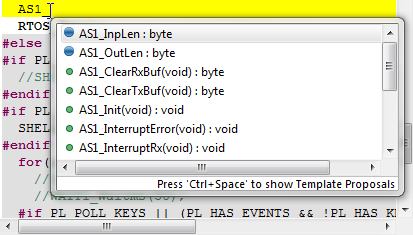
ctrl+space
— content assist which proposes methods/member variables and more based on my typing. start typing with a. and it will show me the struct members. shortcut for
edit > content assist
:
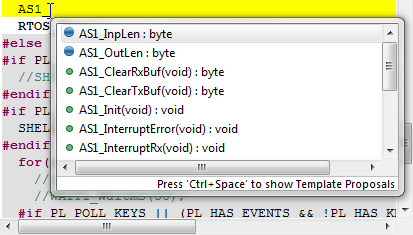
ctrl+space: content assist
-
ctrl+3
—
quick access
let me go to views, perspectives and more. shortcut for
window > navigation > quick access
:
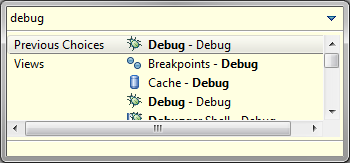
ctrl+3: quick access
- ctrl+m — maximizes the current view or editor. press ctrl+m again and it goes back to the previous size. shortcut for window > navigation > maximize active view or editor .
- ctrl+shift+/ — insert block comment, remove it again with ctrl+shift+\. shortcut for source > add block comment . depending on your keyboard layout you might re-assign this short cut (e.g. if on your keyboard ‘/’ is only reached with the shift key).
-
ctrl+shift+t
— open an element with wildcard support. shortcut for
navigate > open element
:
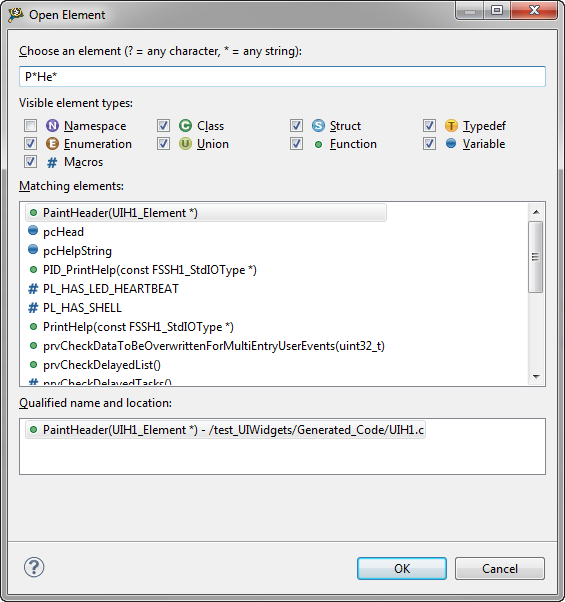
ctrl+shift+t: open element
-
ctrl+f7
— switch to next view. pressing again ctrl+f7 let you iterate to the next view. use ctrl+shift+f7 for previous view. shortcut for window > navigation > next view:
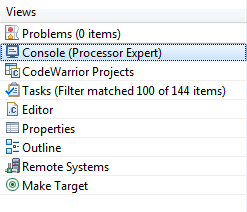
ctrl-f7: views
-
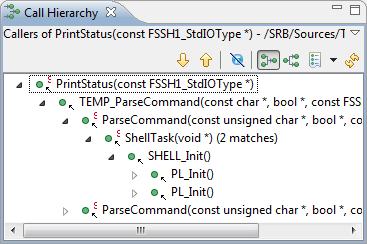
ctrl+alt+h
— opens the call hierarchy. shortcut for
navigate > open call hierarchy
:
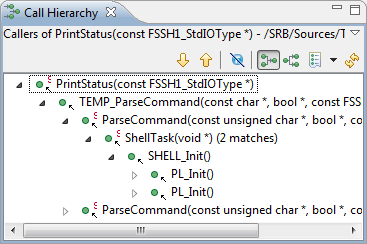
ctrl+alt+h: call hierarchy
-
ctrl-o
— open the quick
outline view
. shortcut for
navigate > quick outline
:
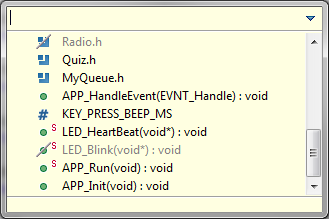
ctrl+o: quick outline view



if you do not like the shortcuts (or key bindings): go to window > preferences > general > keys and change the bindings:

key bindings
i admit: this is my personal list. if you know about a ‘secret’ shortcut which you would like to see on this list, post a comment.
happy short cutting

Published at DZone with permission of Erich Styger, DZone MVB. See the original article here.
Opinions expressed by DZone contributors are their own.
Comments